








PICO-8

Guide
Guide Categories
Beginner Friendly Browsing
Audio Colors Commands Controls Debug Editors Getting-started Loops Lua Maps Math Save-export Screen Shapes Sprites System Tables Variables
 Official Manual
The Official Manual is provided here for quick access. Our specific guide pages will also direct you to specific relevant sections of the Official Manual.
getting-started
_init
"init" = initiate (start)
function _init()

end
In game development, "init" refers to a function that initializes or sets up the game's initial state, variables, and resources before the game starts running. This can include loading assets such as graphics and sound files, setting up the game world and player, initializing game mechanics and rules, and performing any necessary calculations or configurations. The init function is typically called at the beginning of the game or when a new game session starts, and is important for ensuring that the game runs smoothly and as intended.

6338
25 Apr 2023
_update
function _update()

end
In game development, "update" refers to a function that updates the game state and renders the game world on each frame of the game loop. The update function can include code that updates the position and behavior of game objects, handles user input, performs game logic, and calculates physics and collision detection. The update function is called once per frame (30 times per second) and is critical for ensuring that the game runs smoothly and responds correctly to player inputs and in-game interactions.
To increase the framerate of the game, use _update60 instead.
function _update60()

end
4804
15 Mar 2023
_draw
function _draw()

end
In game development, "draw" refers to a function that renders the game world and its objects onto the screen. The draw function can include code that displays graphics, animations, text, map, and other visual elements that make up the game's user interface. The draw function is called after the update function has updated the game state on each frame, and is important for displaying the updated state to the player. By rendering the game world on each frame, the draw function ensures that the player sees a smooth and responsive display of the game, enhancing the player's experience.
The draw function will match the update function's framerate. So if you use _update60() then _draw() will also run 60 times per second.
4885
15 Mar 2023

Experienced programmers develop simple habits that help them solve problems, avoid mistakes, and write cleaner code. These habits often become short, memorable reminders called "programming mantras".
The mantras on this page were originally designed and shared with us by Chris Brenan (a father of a PICO-8 student) which, with his permission, we have reworded and added our own interpretations and illustrations. They are provided here for beginners learning to code who want to start building good habits early on.
Whenever you get stuck, come back to these reminders and ask yourself if one of them applies. The more often you use them, the more they become natural habits, helping you solve new problems with confidence instead of guessing.
Name it What it Is
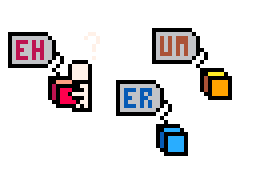
Good variable names make your code easier to read and understand. Instead of short names like x or a, choose names that describe what the variable stores, such as player_x or alien_speed. Clear names make your code read more like a story, helping both you and others understand it later.
In PICO-8, you will often come across code that seems to encourage the opposite of this because PICO-8 has a character limit. However, using minimal variable names should not be a habit that you start with. The better habit to form is to first name every variable as long as you need to make it clear. Many PICO-8 games are "minified" and shrunk down much later in development only after they run into the limits, so don't sacrifice readability early on just for fear of reaching limits later on. Making your code easy to read, starts with how you name your variables.
No Magic Numbers
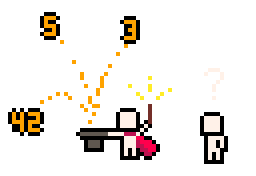
Avoid typing important numbers directly into your code. When you look back at your code later you may forget what the numbers are for and be afraid to touch them because they seem to be working magically. Those are "magic numbers". Instead, store them in a variable with a meaningful name and let the variable name explain what the numbers are for.
This makes your code easier to understand, easier to change, and helps you remember what each number is doing.
Example:
If you write player.x += 2 to move the player. What does the 2 mean? Is it walking speed? Running speed? What if you want something else in the game that moves at half or double the player's speed? You'll have to hunt and find this line of code every time to know what the player's speed is. Then if you decide to change the player's speed, then you'll also have to hunt down all the other magic numbers that depended on it being 2, and that can get very messy, very quickly.
So instead, create a variable named player_speed and write player.x += player_speed. Now that line of code explains itself, and if you want to make the player faster later, you only need to change the value in one place instead of searching through your entire program. And that half-speed enemy in your game is automatically updated to the change if you wrote it also without magic numbers like enemy_speed = player_speed/2.
Write the Skeleton First
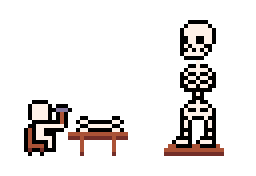
Start by writing the structure ("skeleton") of your code before filling in the details. For example, write the if, then, and end first, before you add the condition and the code inside. Do the same with parentheses—write both "(" and ")" before typing what's in the middle. The same for tables, writing both "{" and "}" first. Building the skeleton first helps you make fewer mistakes and keeps your code organized.
Simply forgetting to write an end, can cause very confusing and hard to solve bugs or errors. It will also feel a bit embarrassing to ask for help with a difficult bug that is giving you a headache, only to find out it was something this simple. Of course, we've all been there and learned to follow this mantra the hard way, so don't feel too bad.
Minimal Incremental Changes
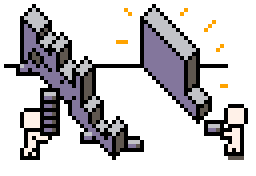
Minimal = smallest | Incremental = step by step
Make one small change at a time, then test your game before making the next change. If something breaks, you'll know exactly which change caused the problem and you can fix it fast before moving on. Test running your game often, after even tiny changes, will make any mistakes easier to catch, easier to fix, and help you build your game with confidence instead of discovering later that there are multiple problems at once.
Nothing is worse for beginner programmers than to feel like their entire program collapsed due to multiple errors and have no idea where to start patching it back together. One later bug could be hiding an earlier one and they can have you second guessing everything you wrote. So save yourself the headache and test run the game often to keep progress moving forward at a high speed.
Think in Conditions
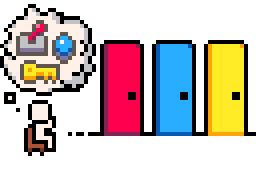
A condition is simply something that can be true or false, such as "the player is touching an enemy", or "the score is 10", or "the key has been collected." Every game is built on such rules: if A is true, then do B. Whenever you want to add a rule to your game, start by asking yourself, "What condition triggers this action?"
For example, imagine you want a locked door to open. First, describe the rule in everyday language: "The door should only open when the player has the key. Otherwise, it stays closed." Next, think about it using the words if and then: "If the player has the key, then open the door. Else, keep it closed." Finally, write it in PICO-8 using an if...then...else statement. By focusing on conditions first, the code almost writes itself, and when the logic gets complicated, you'll organize it by which conditions need to be checked first, not the resulting actions. So to write good game logic, think in conditions.
Draw it Before it Moves
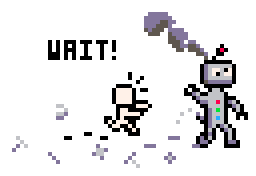
Before trying to make something move, make sure you can draw it on the screen first. Remember: minimal incremental changes. Drawing a sprite to the screen is often thought of as too simple, so you might try to draw it and animate it at the same time. But if a sprite isn't appearing where you expect, the movement you added will only make the problem harder to find. First check that it's visible, in the right position, and drawn correctly. Once you know it's working, you can confidently add movement, animation, and other behaviour, one small step at a time.
First One, Then Many
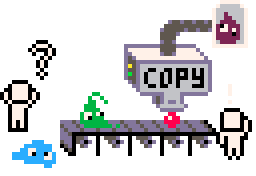
Before creating lots of something, make sure you can create just one first.
Draw only one enemy, one coin, or one star and get it working exactly how you want. Once it behaves correctly, you can use a loop to create many of them. Solving the problem once is much easier than trying to fix the same mistake in twenty places. The logic of a loop is complicated, so it is better to isolate any mistakes to the code you eventually want to repeat before repeating it many times. Often times that even means making sure collision works with just one tile or object before making the full scene with a variety of objects.
Don't Repeat Yourself
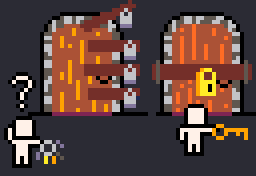
If you find yourself writing the same code more than once, or copy & pasting code often, stop and ask if there's a better way. Repeated code is harder to maintain because every time you make a change, you have to remember to update it everywhere it was copied. It's easy to miss one copy and accidentally introduce bugs.
Instead, look for ways to reuse your code. You might create a function, use a loop, or store a value in a variable instead of writing it over and over again. One piece of code that does one job is easier to read, easier to test, and easier to improve than juggling many copies of the same thing scattered here and there.
New Problem, Old Solution

Programming is full of patterns. Just because you're solving a new problem doesn't mean you need a completely new solution. Often, the code you wrote for one feature can be adapted for another with only a few small changes.
For example, if you already know how to collect a coin, you can use almost the same pattern to do something that seems very different such as opening a door and entering a building. Both cases require you to check if the coin or door is within reach of the player and if the player presses a button, then only the action of what happens next is different. Learn to recognize these patterns and reuse them. The more patterns you know, the faster and more confidently you'll solve new programming challenges.
Read the Error Out Loud
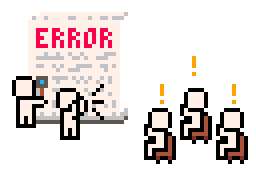
When your program shows an error, don't ignore it or skim over it looking only for "the important parts".
Read the entire message out loud. Error messages often tell you exactly what went wrong, where it happened, or what the program was expecting. Slowing down and reading each word carefully can reveal clues you might otherwise miss.
Many beginners panic as soon as they see an error and start randomly changing code or undoing what they last added. Instead, let the error message guide you. Treat it like a helpful hint from PICO-8 rather than an alarm that you've failed. Yes, there's a problem, and yes, you caused it, but you can fix it and learning to read error messages well will help you fix it faster.
Ask, "What Changed?"
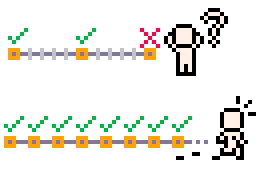
If your code was working a moment ago but suddenly isn't, ask yourself one simple question: What changed?
The bug is often hiding in the last thing you added, removed, or edited. Start your investigation there before looking anywhere else, even if the problem appears to be something completely unrelated. It's easy to assume the problem is somewhere else, but computers don't change their minds on their own and decide to break something that was working a moment ago. By tracing your steps and checking your most recent changes first, you'll usually find the mistake much faster than searching through your entire program.
And if your answer to "what changed?" is "a lot!" then you forgot to make incremental changes and test often.
Print it to See it
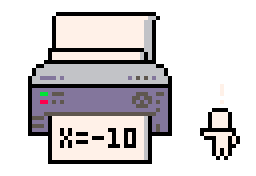
If you're not sure what your program is doing, make it tell you.
Use print() to display on top of your game the values of variables, whether a condition is true, or which part of your code is running. Don't guess what the variables are, see them for yourself.
Printing information to the screen is one of the simplest and most powerful debugging tools. A few well-placed print() statements can quickly reveal that a variable has the wrong value, isn't changing when you expect, or that a piece of code isn't running at all. There is also the option to print to the console with printh().
1791
29 Jul 2026